
Passport Size Photo Maker: Create Professional Passport Photos Online for Free
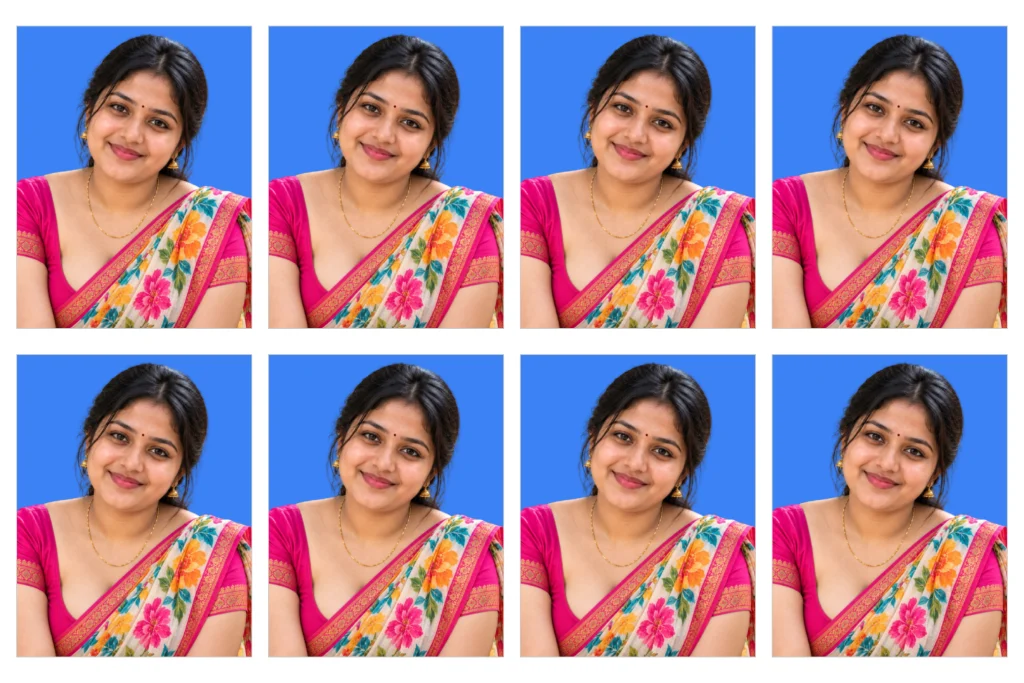
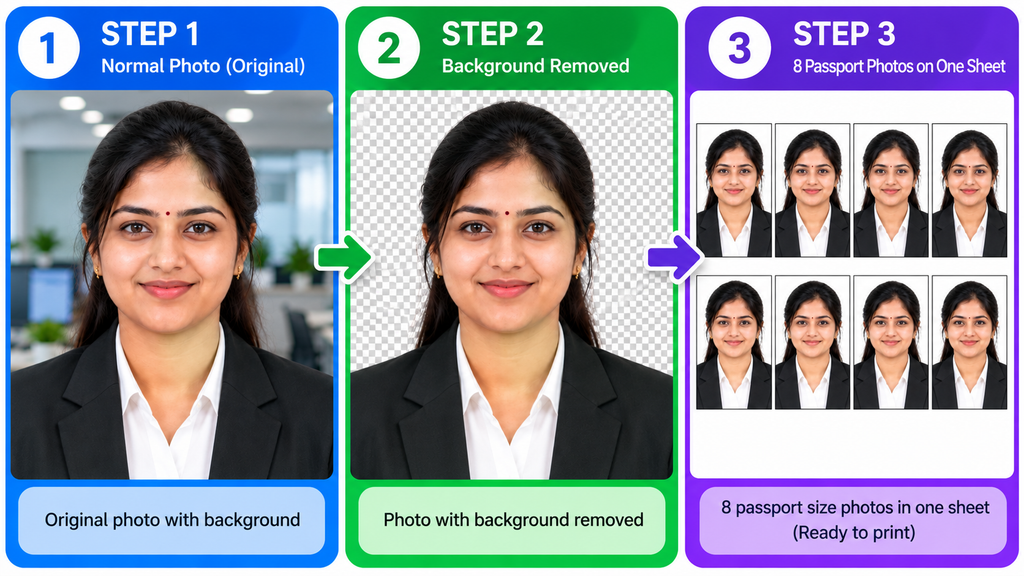
Getting a passport-size photograph ready for an application, identification document, admission form, job application, visa process, or other official requirement can sometimes be more inconvenient than it should be. Traditionally, people had to visit a photo studio, explain the required size, wait for the image to be edited, and then collect several printed copies.
Today, a suitable photograph can often be prepared digitally in just a few minutes.
The TechBuildex Passport Size Photo Maker is designed to make this process simpler. The online tool allows users to upload an image, crop it for a passport-style format, remove the existing background, choose a background color, preview the result, and prepare a print-ready 6 × 4 inch sheet. The current tool supports JPG, PNG, and WEBP images up to 10 MB.
This guide explains what the tool does, how to use it, its practical benefits, important considerations, frequently asked questions, and some useful points to remember before using a passport photograph for an official application.
What Is a Passport Size Photo Maker?
A passport size photo maker is an online image utility that helps users prepare a regular photograph for use as a passport-style or identification photograph.
The main advantage of an online tool is convenience. Instead of opening a complicated photo-editing application and manually calculating dimensions, users can work through a dedicated interface created specifically for this purpose.
TechBuildex’s Passport Size Photo Maker provides a workflow built around uploading, cropping, background editing, generating the photograph, and preparing a printable sheet. The tool displays a live passport preview using a 3.5 × 4.5 format and provides a final 6 × 4 inch landscape sheet for printing.
For someone who only needs a few properly arranged photographs, this can be much easier than learning professional image-editing software.
Key Features of the Passport Size Photo Maker
1. Upload Your Existing Photograph
The first step is to select an image from your computer. The tool currently accepts JPG, PNG, and WEBP formats and lists a maximum upload size of 10 MB.
This makes the tool suitable for photographs already stored on a computer or downloaded from a phone.
2. Passport Photo Cropping
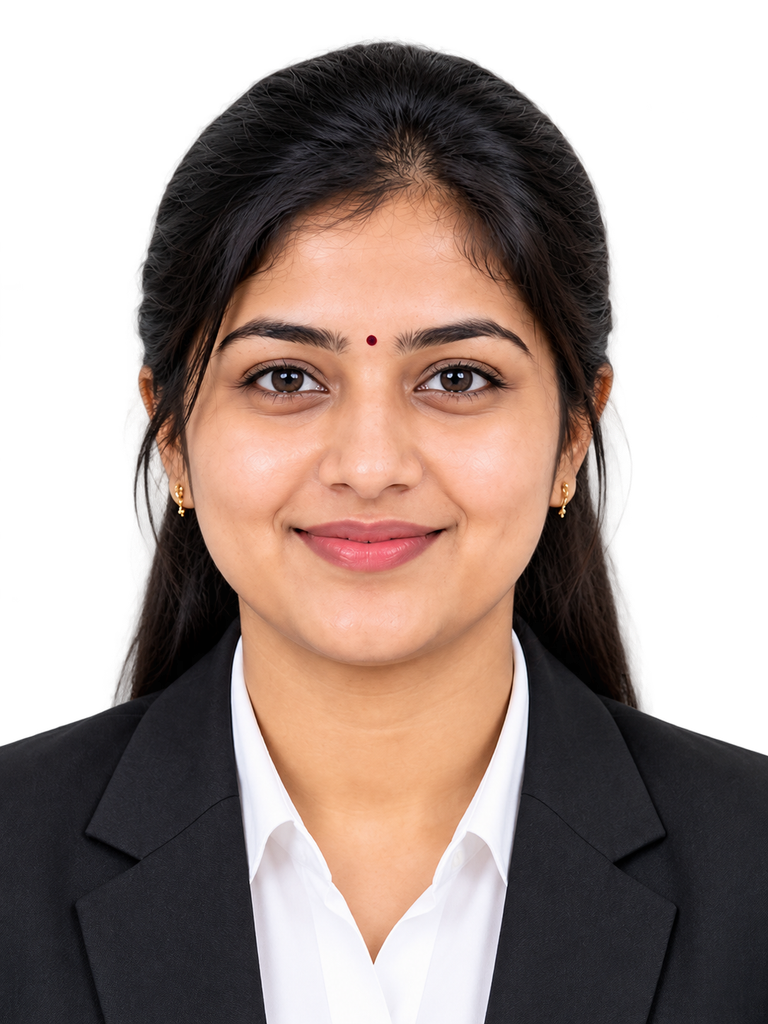
Cropping is one of the most important parts of preparing an identification photograph. A normal photograph may contain too much space around the person, an unsuitable composition, or an incorrect aspect ratio.
The tool provides a dedicated crop stage so users can adjust the photograph before generating the final result.
3. Background Removal
The Passport Size Photo Maker also includes a background-removal feature. This can be useful when the original photograph has a distracting wall, room, outdoor scene, or another background.
Removing the background gives users the opportunity to create a cleaner-looking passport-style image.
However, users should always check the final result carefully. Background removal technology can occasionally affect hair edges, ears, shoulders, glasses, or other fine details.
4. Background Color Selection
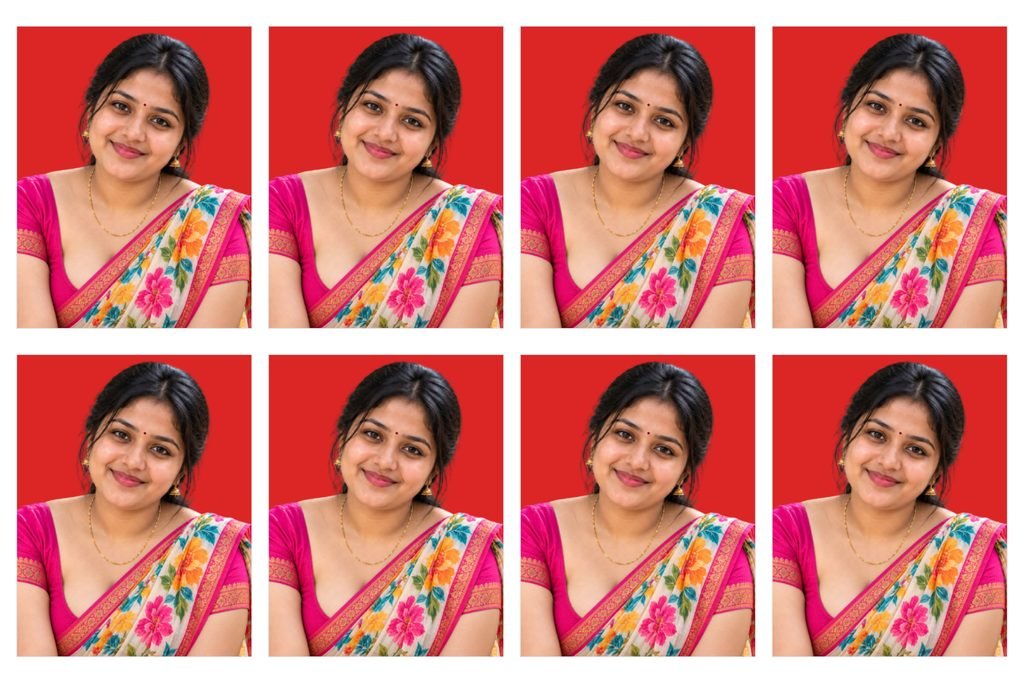
After removing the original background, the tool allows users to choose a background color.
This is particularly useful when a particular application specifies a certain background appearance.
An important point is that photo requirements can differ between countries, authorities, visa applications, institutions, and documents. Therefore, users should confirm the requirements of the organization receiving the photograph rather than assuming that one background color or size is accepted everywhere.
5. Live Passport Preview
A live preview is valuable because it allows users to inspect the image before creating the final print sheet.
The tool displays a passport-photo preview marked as 3.5 × 4.5, helping users understand how the final photograph is being prepared.
Previewing the image before downloading or printing can help identify problems such as an incorrect crop, poor positioning, unwanted background areas, or an unsuitable photograph.
6. Print-Ready 6 × 4 Inch Sheet
One of the practical features of the tool is its ability to generate a 6 × 4 inch landscape print sheet.
Instead of preparing every small photograph separately, users can create a sheet designed for printing.
The finished sheet can then be downloaded or sent directly to the printer through the available controls.
How to Use the TechBuildex Passport Size Photo Maker
Using the tool is straightforward.
Step 1: Open the Tool
Visit the TechBuildex Passport Size Photo Maker page and locate the upload section.
Step 2: Upload Your Photograph
Select Select from Computer and choose the photograph you want to prepare. The supported formats are JPG, PNG, and WEBP, with a maximum listed file size of 10 MB.
For the best result, choose a clear photograph in which the person’s face is visible and not heavily obstructed.
Step 3: Crop the Image
Use the crop function to position the face and upper body appropriately inside the passport-photo area.
Avoid making the crop unnecessarily tight. At the same time, excessive empty space can make the final photograph unsuitable for some requirements.
Step 4: Remove the Background if Necessary
If the original background is unsuitable, use the background-removal option.
Inspect the edges carefully after processing. If any part of the subject appears incorrectly removed, choose another source photograph or adjust the image before proceeding.
Step 5: Select a Background Color
Choose the background color appropriate for your intended use.
Do not assume that the same background is acceptable for every passport, visa, ID card, school, examination, or employment application.
Step 6: Check the Preview
Before generating the final sheet, carefully inspect the passport preview.
Check the face position, crop, background, lighting, image clarity, and overall appearance.
Step 7: Generate the Print Sheet
Proceed to the generation stage. The tool prepares the photograph in a print-ready 6 × 4 inch landscape format.
Step 8: Download or Print
Once the final sheet is available, users can use the available Download or Print Directly options. There is also an option to create a new photo if another image needs to be prepared.
Benefits of Using an Online Passport Photo Maker
Saves Time
A major benefit is convenience. Users can prepare a photograph without arranging a separate visit to a photo studio for basic editing and layout work.
Easy for Beginners
The workflow is focused on the specific task rather than offering hundreds of complicated editing controls. This makes it approachable for people who do not regularly use professional image-editing software.
Useful for Printing
The 6 × 4 inch print-sheet option can be convenient when multiple small photographs are required on a single printable layout.
Background Editing
The background-removal and background-color features provide additional control over the final appearance.
Works With Common Image Formats
JPG, PNG, and WEBP support covers several widely used image formats.
Tips for Getting a Better Passport Photo
The quality of the original photograph matters considerably.
Use a well-lit image with the person’s face clearly visible. Avoid photographs with strong shadows, extreme filters, excessive blur, or heavy compression.
A simple, front-facing photograph is generally easier to crop and edit than a photograph taken from an unusual angle.
Before using the final image for an official application, always read that application’s own photograph instructions. Requirements may specify dimensions, head position, background, image quality, recent-photo rules, expression, clothing, or other conditions.
A technically well-prepared photograph is not automatically guaranteed to satisfy every organization’s requirements.
Is an Online Passport Photo Maker Safe to Use?
Users should always consider privacy when uploading personal photographs to any online image-processing service.
Before uploading an important photograph, review the website’s privacy policy and understand how uploaded files are handled. Avoid uploading images containing unnecessary personal information or documents.
For official applications, users should also keep an original copy of their photograph separately so they can make changes or prepare another version if the receiving organization requests a different format.
Passport Photo Maker for Students, Job Seekers and Families
This type of tool can be useful in several everyday situations.
Students may need photographs for applications, identity cards, examination forms, scholarships, or educational records.
Job seekers may need photographs for resumes, application forms, employee records, or other recruitment-related documentation.
Families may also find an online passport photo maker useful when several people need photographs prepared without repeatedly visiting a photo studio.
The actual photograph specifications should always come from the organization requesting the image.
Important AdSense and Content Quality Considerations
If you publish this tool on a website monetized with Google AdSense, the article should provide genuine information rather than existing only as a way to display advertisements.
Google states that AdSense-ready pages should contain unique, relevant, useful content and provide a good user experience.
Google also says that replicated or copied material without meaningful additional value can violate publisher policies. Automatically generated content without appropriate review or added value is specifically identified as a concern.
For this reason, a strong tool page should contain more than a short description such as “upload your photo and download it.” Explain what the tool does, provide genuine instructions, discuss practical use cases, explain limitations, and answer common questions.
The page should also be easy to navigate and should not be overloaded with advertising. Google does not permit pages where ads or other paid promotional material exceed the publisher’s own content.
Ad placement also matters. Google advises publishers to avoid accidental clicks, misleading ad labels, unnatural attention toward advertisements, and ad placements that interfere with navigation or user interaction.
Therefore, keep the actual photo-making controls clearly separated from advertisements. Users should never be encouraged to click ads, and advertisements should not look like buttons belonging to the photo tool.
Frequently Asked Questions
What image formats does the Passport Size Photo Maker support?
The current tool accepts JPG, PNG, and WEBP files and lists a maximum upload size of 10 MB.
Can I remove the background?
Yes. The tool includes a background-removal feature that can be used before generating the final passport-style photograph.
Can I change the background color?
Yes. A background-color selection option is available in the tool.
Does the tool provide a print-ready sheet?
Yes. The tool generates a 6 × 4 inch landscape print sheet for the prepared photographs.
Can I download the finished photo?
Yes. After the final sheet is generated, the interface provides a Download option.
Can I print directly?
Yes. The tool currently provides a Print Directly option after generating the final sheet.
Is every generated photo automatically accepted for official documents?
No. Users should not assume this. Different authorities can have different requirements. Always check the current specifications provided by the organization receiving the photograph.
What should I do if the background removal is not perfect?
Try using a clearer original photograph with better lighting and a simple background. Carefully inspect the generated image before downloading or printing it.
Can I use the tool for multiple people?
You can prepare photographs individually by creating a new photo after completing one image. The current interface includes a Create New One option.
Disclaimer
The TechBuildex Passport Size Photo Maker is provided as an online image-processing utility for convenience. The generated photograph may not satisfy the specific technical or documentary requirements of every passport office, embassy, visa authority, government department, educational institution, employer, examination authority, or other organization.
Users are responsible for checking the latest official photograph requirements before submitting an image for an official purpose.
TechBuildex does not guarantee acceptance of any generated photograph by a particular authority. Users should verify dimensions, background requirements, image quality, recency requirements, facial positioning, and other specifications with the relevant organization.
Conclusion
Preparing a passport-style photograph does not always require professional photo-editing software or a visit to a studio. A dedicated online tool can make the basic preparation process considerably simpler.
The TechBuildex Passport Size Photo Maker combines several useful steps in one workflow: photograph upload, cropping, background removal, background-color selection, live preview, and generation of a 6 × 4 inch print-ready sheet. It also provides download and direct-print options after the final sheet has been created.
For students, job seekers, families, and anyone who occasionally needs properly arranged identification photographs, the tool can be a practical addition to an everyday online toolbox.
The most important step, however, comes before final submission: always compare the finished photograph with the current requirements of the organization requesting it. A convenient photo maker can prepare the image, but only the relevant authority can determine whether that photograph meets its official requirements.
For website owners, the same principle applies to the accompanying article. A useful tool page should give visitors genuine information, clear instructions, meaningful answers, and a straightforward experience. That approach aligns much better with Google’s emphasis on original, useful content and good navigation than a page created primarily to display advertisements.